
How to set up Shopify markets & configure bundle pricing in Simple Bundles 2.0
When using Shopify Markets, merchants can set market-specific pricing through Catalogs, which act as the pricing and availability “rulebook” for each market (for example, US, EU, AU). A catalog can determine which products are available in a market and what prices customers see in that market’s currency, including fixed prices per product/variant or overall price adjustments.
B2B and markets pricing with bundles (current limitation)
If your store uses Shopify Markets, B2B catalogs, or customer-specific price lists, bundle components may not check out at your market-specific or B2B catalog price. The price can fall back to your default catalog price with a standard currency conversion applied, so a component's price may not match the catalog price you set for that market or company. This is a limitation in how Shopify currently prices bundles, not a setting you've configured incorrectly. When a bundle is added to cart or broken into its components at checkout, Shopify doesn't apply the customer's market or B2B catalog pricing to those components the way it does for regular products, even though it already knows the customer's context. Due to technical limits Shopify places on how apps can access pricing data, no bundle app can work around this by storing every market and catalog price on its own. Shopify has acknowledged this as a known gap, and it affects all bundle apps that expand bundles at checkout, not only Simple Bundles. We're monitoring Shopify's progress on this and will update this article when the behavior changes.
How market pricing works when using catalogs
When a catalog is assigned to a market:
-
Shopify uses the catalog as the pricing source for that market
Catalog prices override the base product price
Merchants can configure:
- fixed prices per product/variant, or
- an overall price adjustment (%)
Catalog pricing applies to Shopify products/variants; it does not change how bundles are displayed in checkout.
Before you start (requirements)
-
Shopify Markets must be enabled in your Shopify Admin
You must have access to Settings → Markets
Depending on your Shopify setup, market pricing may be configured through:
- Market price adjustments, or
- Products → Catalogs (catalog pricing per market)
Step 1: Create or update a market
-
In Shopify Admin, go to Settings → Markets
Click your market (example: US) or create a new one
Configure:
- Currency
- Exchange rate (Dynamic or Manual)
- Price rounding (optional but recommended)
This is where Shopify controls how currency conversion works.

Step 2: Create a catalog for the market (if pricing is managed via Catalogs)
Market pricing may be managed using Catalogs. Shopify’s guidance is that catalogs can be used with Markets to control prices + availability for a market (catalog includes price list + publication rules).
To create a catalog:
- Go to Products → Catalogs
- Click Create catalog
- Enter a Title (example: Canada)
- Under Markets, select the market (example: Canada)
- Set the catalog to Active
- (Optional) If you want products automatically included in the catalog, enable: Automatically include new products
Configure rounding (recommended). If you want prices to round off after currency conversion:
-
Go to Settings → Markets
Select the Market (example: Canada)
Click Currency
Under Price rounding, choose either:
- Round prices up after currency conversion, or
- Do not round prices
- Set taxes and duties according to your preference.


Step 3: Decide pricing strategy: “fixed prices” vs “price adjustment”
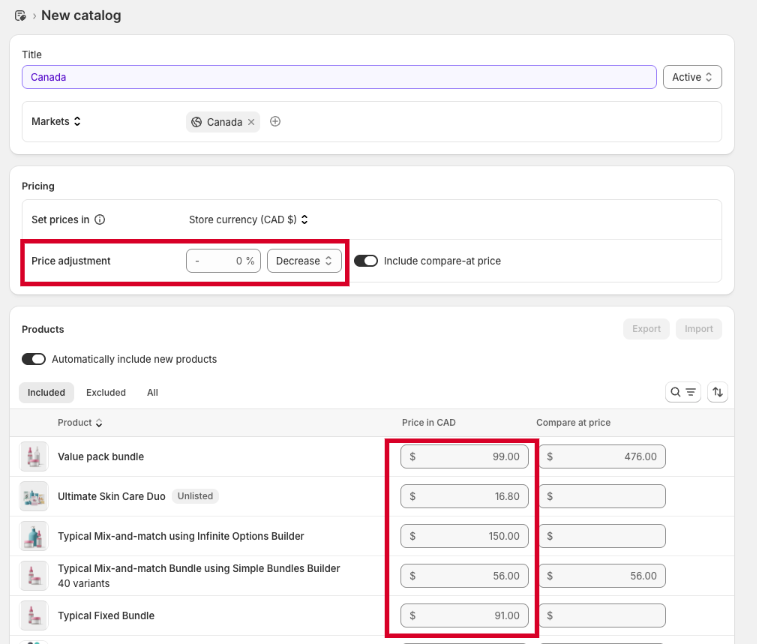
This is the most important decision on this page. In Shopify’s Catalog pricing screen for a specific Market (Canada), controls two big things for that market:
- Which products are included in the market catalog
- What prices customers in that market will see
So, for Canadian shoppers in this example:
Shopify will use the Price in CAD column (and/or price adjustment) instead of your base store pricing.
Option A: Set pricing per product (recommended for bundles)
This is best when you want specific bundle pricing per market. This is highly recommended because if the bundle price changes unexpectedly due to conversion/rounding, merchants get pricing mismatch issues fast.
- In the catalog product list, locate your bundle parent product
- Set the Price in CAD (or market currency)
- Save changes
Confirmed behavior (tested)
We tested this using a bundle where the synced component total was $56, then set a fixed Market Catalog price of $60 for Canada. In checkout, Shopify displayed $60, confirming that Market Catalog pricing overrides the base product/bundle price.


Option B: Use overall price adjustments
What this means:
This is a bulk rule that changes prices for all included products relative to their base price. This is helpful if you want pricing to increase/decrease by a % across the market. This is not currency conversion. It’s a pricing rule.
Example: If you set Increase 10%
-
$50 → $55 CAD
If you set Decrease 20%
- $50 → $40 CAD
-
In the catalog pricing section, locate the price adjustment
Choose:
- Increase / Decrease
- Set % adjustment
- Save changes
Step 4: What to expect in checkout (bundles + markets)
This is the most important section to prevent confusion.
Scenario 1: Bundle stays as a parent product in checkout (Simple Bundles 1.0 behavior)
If the bundle remains as a single product line item:
- The customer sees the bundle parent product
- The customer pays the market price you set for the bundle parent
In this case, Markets pricing behaves like normal Shopify product pricing.
Scenario 2: Bundle breaks down into component items in checkout (Simple Bundles 2.0 behavior)
If you are using Simple Bundles 2.0 with Cart Transform enabled, Shopify checkout may show:
- the bundle broken down into its component products
- pricing displayed across the components (depending on Shopify behavior)
Limitations with multi-currency and Shopify markets (Important to know)
Simple Bundles does not automatically:
- calculate bundle parent price per market based on component prices
- sync the sum of component prices into the bundle price per market
Catalog pricing can override base pricing
If Catalog pricing is active for a market, the price shown to customers may differ from the base product price in the Shopify admin.
B2B note (if applicable)
If your store uses Shopify B2B:
- Catalog pricing may be company-specific
- B2B catalog pricing can override what you expect from Markets pricing
FAQ
Does Shopify markets support different bundle prices per country?
Yes. Using Markets (and Catalog pricing where applicable), you can set different pricing per market/country.
More info: https://help.shopify.com/en/manual/markets-new/catalogs
Can I show different bundle products in different markets?
Yes. Catalogs can control:
- which products are available
-
which products are hidden
Example:
- House Set A in the US, House Set B in the EU
Why are taxes/shipping affecting the total differently per market?
Markets can change:
- tax settings
- shipping zones/rates
- duties/import fees
So totals may vary by market even if product pricing is correct.
How to test market pricing properly?
Recommended testing steps:
- Go to your storefront
- Switch the market selector
- Add the bundle to cart
- Proceed to checkout
- Confirm currency + displayed bundle breakdown
Does dynamic pricing work with Shopify markets and market-specific pricing?
Dynamic Pricing works with Shopify Markets when using Simple Bundles, but it won’t work as expected with Infinite Options bundles. Infinite Options pricing relies on Shopify’s live currency conversion, so custom market-specific prices may not apply correctly.