
How to show updated prices on the product detail page using Dynamic Pricing
By default, when dynamic pricing in Infinite Options bundles is enabled, the product detail page shows the parent product's price, a fixed amount that doesn't update as customers select different bundle options. The real total only appears in the cart, which can confuse customers during the selection process.
This customization solves that by adding a Bundle Price block that updates instantly as customers make their choices. It reads directly from Simple Bundles' pricing data, so the price on the page always matches the final checkout total. Best of all, it's a self-contained snippet, no app block, no theme settings to configure, no third-party dependencies.
Works with:
- Simple bundles
- Infinite Options bundles
How to set this up
Start by duplicating your live theme before touching anything else. In Online Store → Themes, find your live theme, click the three-dot menu, and select Duplicate. Work on the duplicate throughout this guide, preview it when you're done, and only publish once you're happy with the result. Rolling back is instant if anything doesn't look right.

Step 1: Add the snippet file
- In Shopify admin, go to Online Store → Themes.
- On your duplicated theme, click Actions → Edit code.
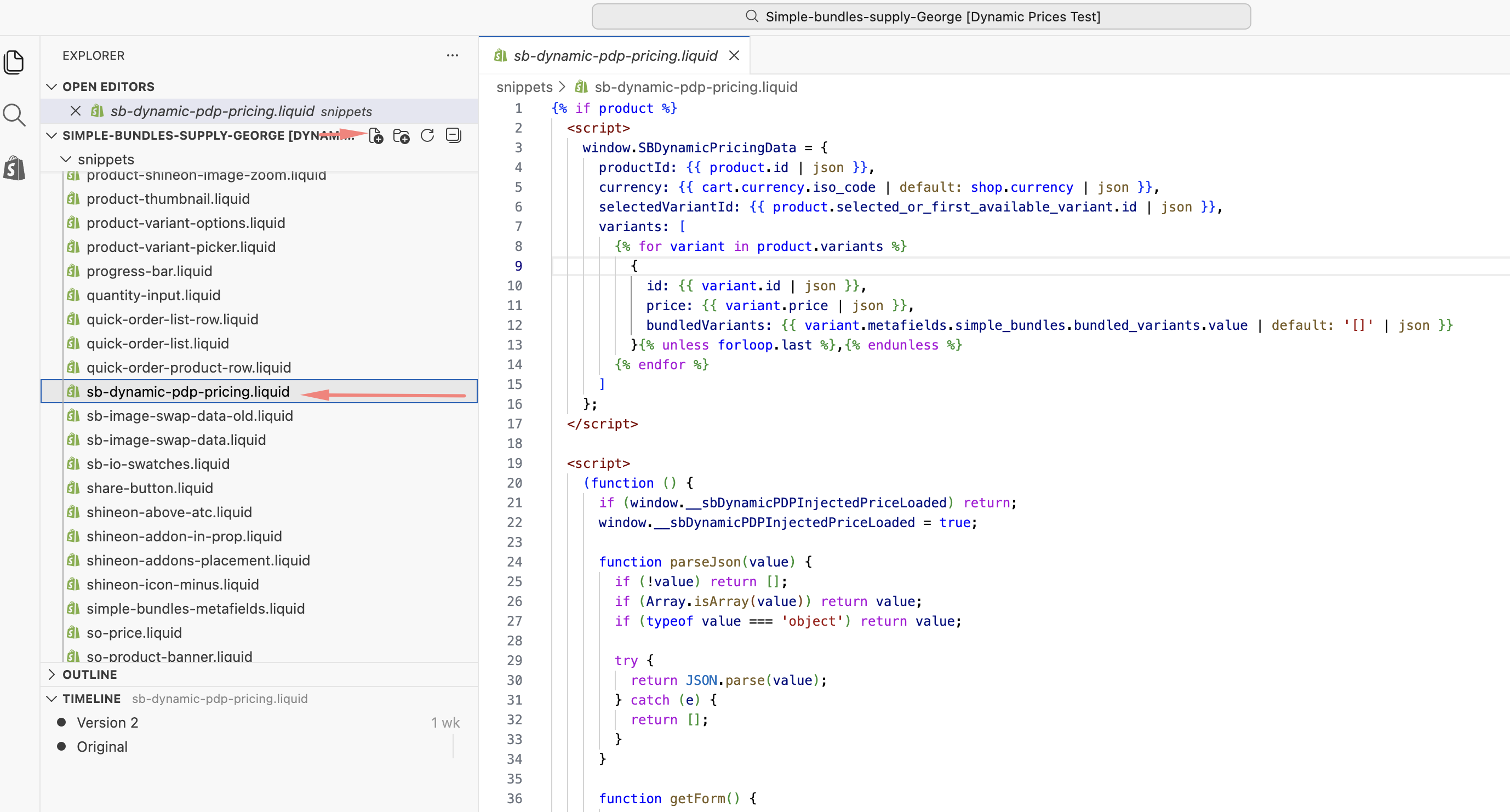
- In the left sidebar, find and open the Snippets folder.
- Click Add a new snippet.
- Name it
sb-dynamic-pdp-pricing, no.liquidextension needed, Shopify adds that automatically. - Open the snippet code (available here), copy everything, and paste it into the new file.
- Click Save.
Step 2: Load the snippet on product pages
- Still in the code editor, open the Layout folder.
- Click theme.liquid.
- Scroll to the very bottom and find the closing
</body>tag. - Paste the following just above the
</body>tag:
{% if template.name == 'product' %} {% render 'sb-dynamic-pdp-pricing' %} {% endif %}
- Click Save.
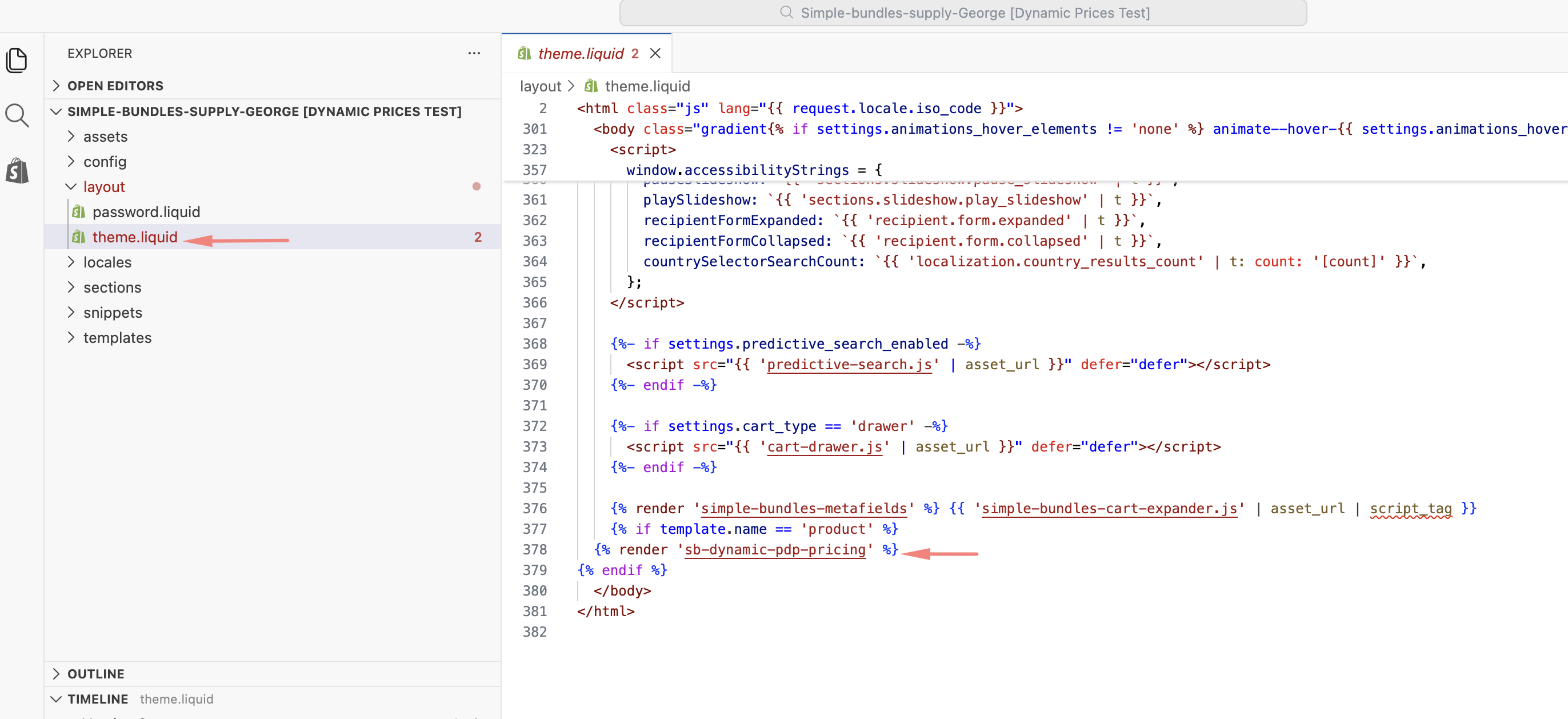
The snippet will now run on every product page only, and do nothing on other pages.
Step 3: Test the bundle price block
- Go back to Themes and click Preview on your duplicated theme.
- Open any bundle product page.
- A Bundle Price block should appear near the add-to-cart button.
- Change the options, try different combinations like color, add-ons, or accessories. The price should update instantly with each change.
- Add the bundle to the cart and confirm the price matches exactly.
Once everything looks right, publish the duplicated theme.
Whether the standard Shopify price needs to be hidden depends on your theme. Reach out to our support team, and we'll review your theme and make the adjustment accordingly.
How it works
When the page loads, the snippet reads the bundle's pricing data directly from the Simple Bundles app. As the customer selects options, swatches, dropdowns, and add-ons, the snippet looks up the price for each selection and adds them up, updating the displayed total instantly.
This means the price on the page always reflects your current pricing setup in the Simple Bundles app. Update a price in the app, and the product detail page follows automatically, no extra steps needed.
Where the price block appears
The block is inserted at the top of the add-to-cart form, just above the variant selectors and quantity field. On most themes, Dawn, Minimog, Broadcast, Horizon, Symmetry, and others, it fits naturally with no additional styling required.
If you'd prefer the block in a different position, or want it to replace the default price display, reach out, and we'll adjust the placement to suit your theme.
Things to know
- Multi-currency / Shopify Markets: The block displays prices in your store's base currency, formatted with the customer's currency symbol. If you sell across multiple currencies through Shopify Markets, the on-page preview may show the base currency figure with a different symbol, but the actual total at checkout will always be correct. Let us know if this affects your store, and we can explore options.
- Other apps displaying bundle prices: If another app already shows a running bundle total on the page, you may end up with two price blocks. Get in touch, and we can help sort out the conflict.
- Custom themes with multiple product forms: Some themes include separate product forms for quick-view panels, sticky bars, or pop-ups. The snippet attaches to the first form it finds, which is usually the correct one. If the block appears in the wrong spot, let us know, and we'll take a look.
- Theme updates: As a snippet, this customization stays in place when you update your theme through the Shopify admin. However, if you replace your theme entirely with a fresh download, you'll need to re-add the snippet. Keep a copy of the snippet file somewhere safe.
Removing the block
To remove the Bundle Price block at any time:
- Open theme.liquid, find the three lines you added in Step 2, and delete them. Click Save.
- Optionally, delete the
sb-dynamic-pdp-pricing.liquidfile from the Snippets folder.
The product detail page will revert to showing the standard Shopify product price.
Need Help?
Reach out to our support team for help with installation, placement adjustments, or troubleshooting.