
How to manage bundle breakdowns in orders using Shopify Flow
This guide walks you through how to use Shopify Flow to manage and automate bundle breakdowns in your orders. It includes two powerful workflows:
How to add bundle breakdown to order notes using Shopify Flow
How to process bundle breakdown in order using Shopify flow
Note: Shopify Flow is available on all Shopify plans. No coding or custom development is required. These workflows and actions are plug-and-play and can be set up quickly using Flow’s built-in actions.
How to add bundle breakdown to order notes using Shopify Flow
When you want the bundle breakdown to be clearly visible at a glance, this workflow automatically adds a detailed list of each bundle’s contents to the order notes as soon as the order is created. This is especially helpful for packing teams who need item-level details without relying on Shopify packing slips, and since order notes usually flow into other integrations like ShipStation, it helps streamline fulfillment across your tools.
How to create the Flow
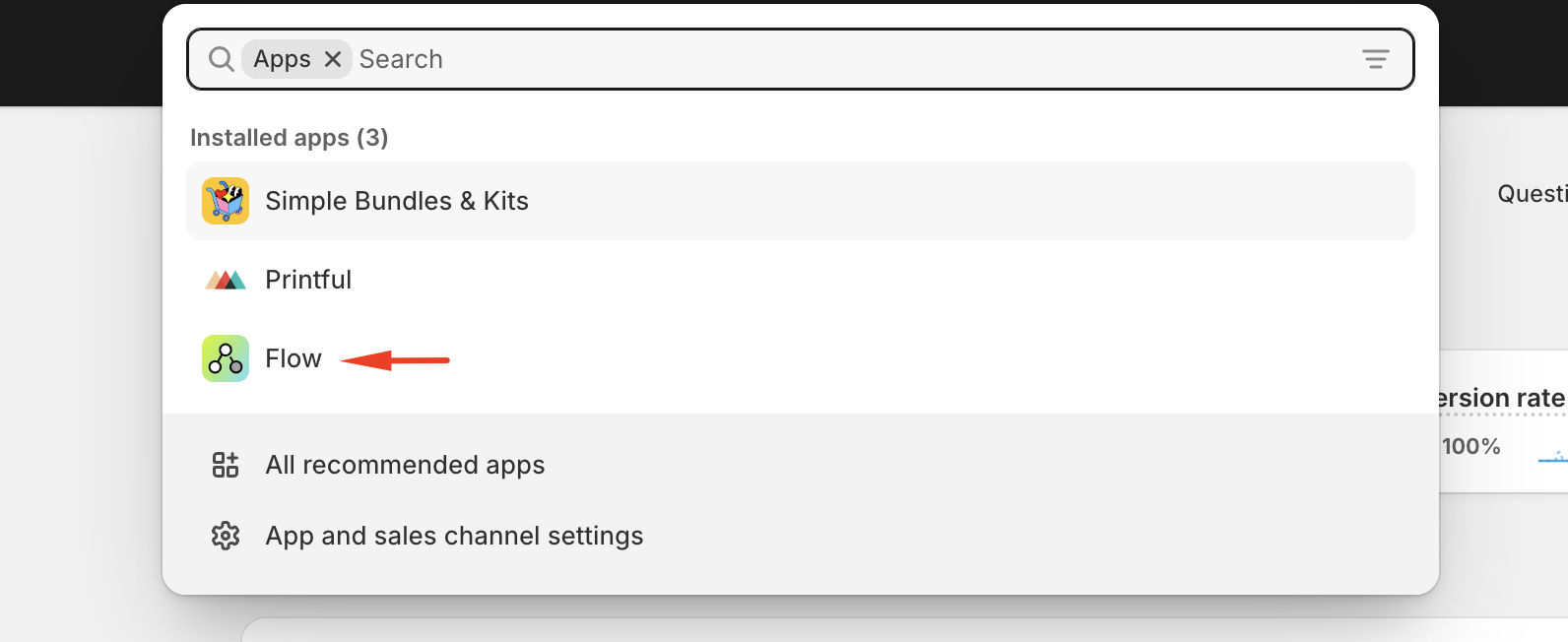
- On your Shopify Admin, go to Apps and select Flow.
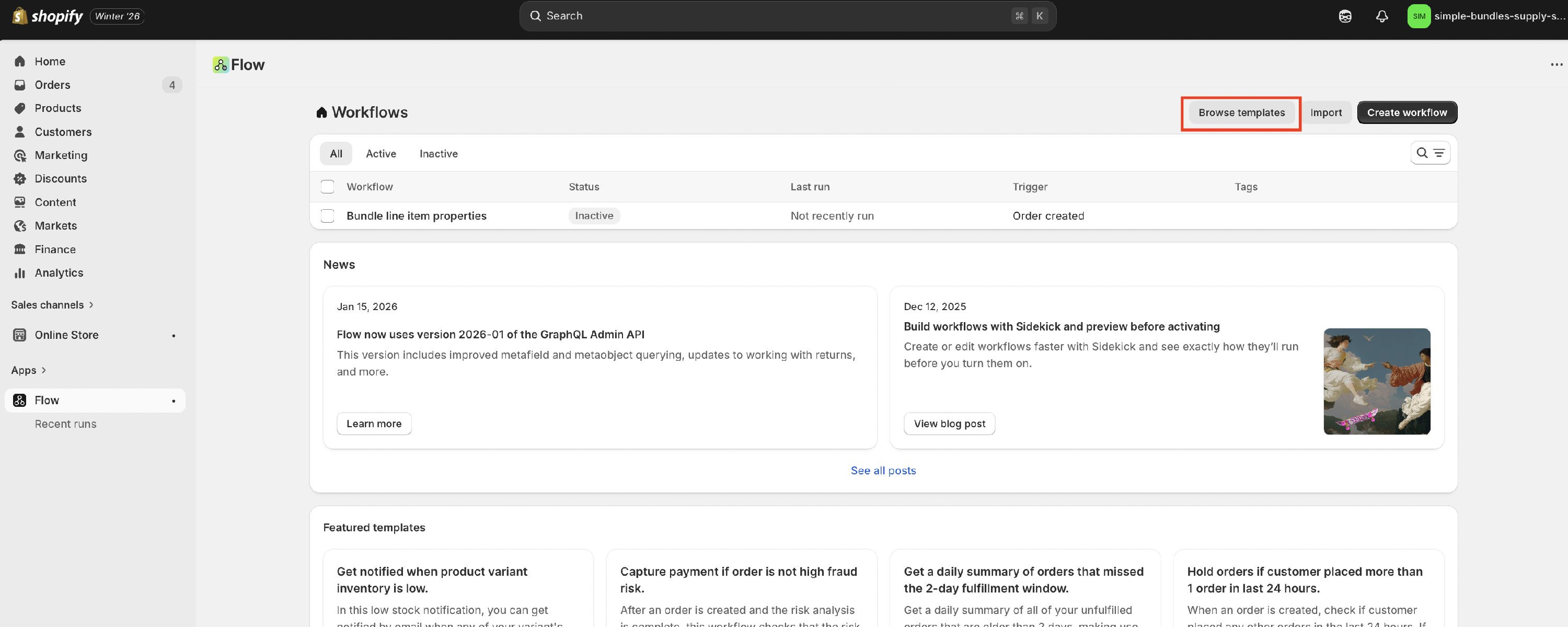
- From the Flow dashboard, click Browse templates and look for "Add bundle breakdown to order notes."

- Open the template and click on Install

- Once installed, open the template. You’ll see that it is triggered when an order is created.

- Make sure the template status is set to Enabled.

What you will see in the order notes
In the order notes, you will see the following:
- Any existing order note, which remains unchanged
- A new section labeled Bundle Breakdown
- Each bundle is listed once, along with its quantity
- All custom cart attributes are clearly listed under the corresponding bundle

This allows fulfillment, support, and packing teams to work more efficiently by referencing all bundle information in one place.
How to process bundle breakdown in order using Shopify flow
This Flow action automatically breaks down bundle line items into their individual component items when using Simple Bundles 1.0 (order editing method) or in cases where Simple Bundles 2.0 falls back to order editing because the Cart Transform API did not function. It works even after Shopify’s initial 1-hour order editing window has passed.
How to create the Flow
- From the Shopify Flow dashboard, click Create workflow.

- Click on Select a trigger.

- You can control when a bundle is broken down by selecting a specific trigger within your Shopify Flow workflow. For example, if you’d like the bundle to be broken down at the time of order creation, simply use the Order Created trigger. Alternatively, if you'd prefer the bundle to be broken down only after the order has been fulfilled, use the Order Fulfilled trigger instead. The selected trigger determines the exact point in the order process when the bundle breakdown will be executed.

- After creating a trigger, click on Actions and select the Simple Bundles & Kits app

- From the app, select the action Process Bundle Order

- Ensure to turn on the workflow

- You can test this workflow using an order that has already passed Shopify’s 1-hour order editing window. In the example below, the order was edited to include an additional bundle product. However, since the order had already passed Shopify’s 1-hour editing window, the bundle was no longer automatically broken down.

- To trigger the Flow action and break down any bundles that haven’t been processed yet, simply mark one of the bundle items in the order as fulfilled. This will activate the Flow and initiate the bundle breakdown.

This Flow action is constructive for bundles added to an order after Shopify’s 1-hour editing window has passed. It ensures those newly added bundles are still broken down into their component items, keeping fulfillment accurate and preventing issues with packing or third-party integrations.
Need help?
If you’d like help importing the Flow, adjusting the formatting, or confirming it works with your setup, feel free to reach out to our support team.